
Photoshop Quick Tip: Working with Smart Text
 If you try to apply a filter to the layer you will receive a notification about rasterizing.
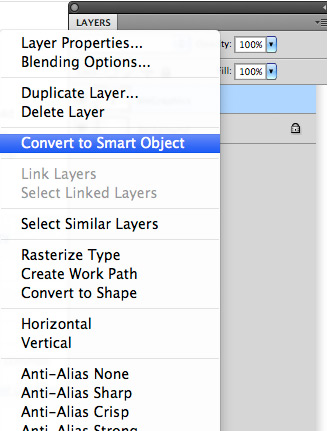
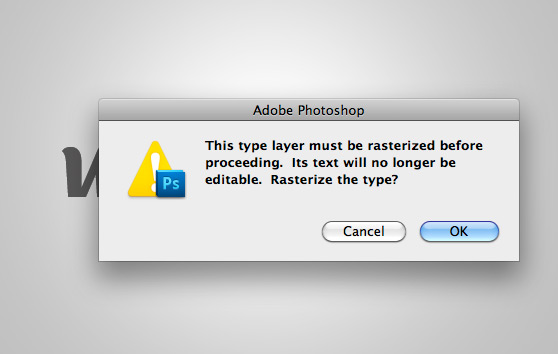 To avoid this, let's convert our type layer to a Smart Object. (Ctrl + Click) the layer and select "Convert to Smart Object" from the menu.
 Now try applying a filter. I applied a Radial Blur in the example below.
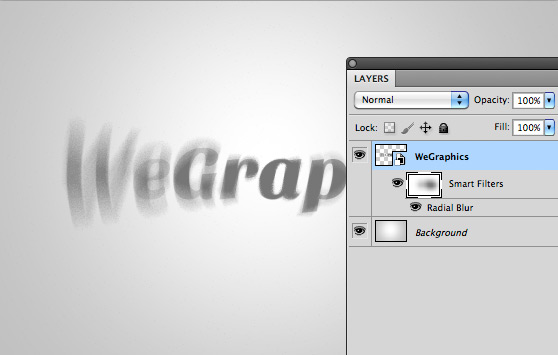 Just like all other Smart Objects, the filter is applied as a mask, so you can draw on the mask to reveal parts of the original layer.
Now for the really cool part... Double click the Smart Object type layer's thumb nail. A new document opens up revealing the Smart Object .psb file. You can now select and edit the text.
Just like all other Smart Objects, the filter is applied as a mask, so you can draw on the mask to reveal parts of the original layer.
Now for the really cool part... Double click the Smart Object type layer's thumb nail. A new document opens up revealing the Smart Object .psb file. You can now select and edit the text.
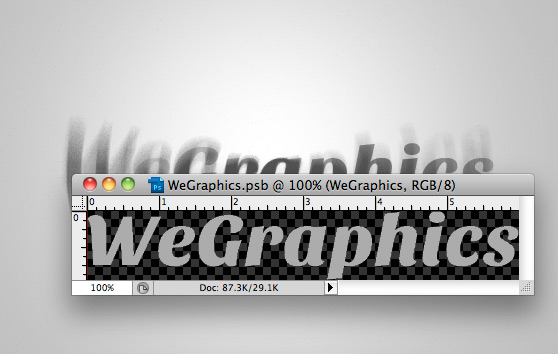 Below I just changed the color of the text. You can see that the color of the blur effect changed as well.
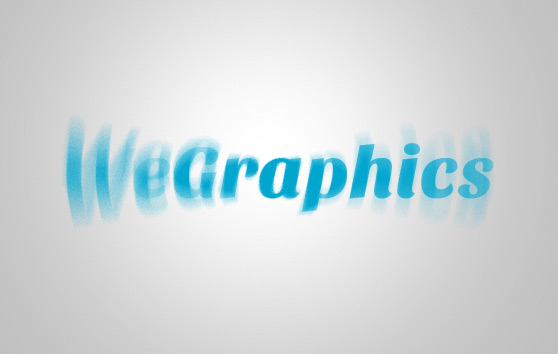 If you want to add more text, you'll need to adjust the canvas size of the .psb file.
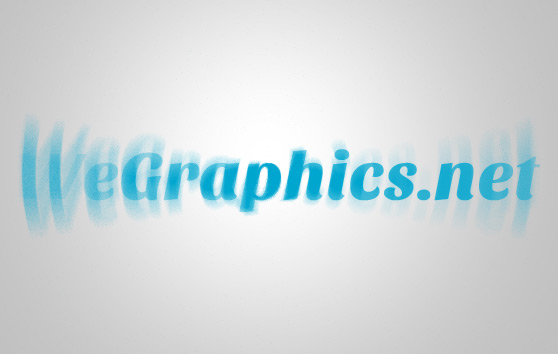 I hope this quick tutorial helps you understand the benefits of working with type and Smart Layers. Experiment and have fun!
More from Tutorials
How to Easily Remove Smoke From The Background in Photoshop
Tutorialsby Diego Sanchez
Smoke images can be used in a wide range of applications across various designs, such as adding drama to a photograph, crafting captivating visual effects on posters, or even giving your artwork a mysterious halo. Whichever the case, transparent smoke can serve as a powerful tool in your arsenal. So today, I will show you how easy it is to remove the background from a smoke image, and in the process, prepare the file to change the smoke color at any time you want, allowing you to seamlessly integrate it into your projects.
Read more
Easily Make a Glass Texture Effect in Photoshop
Tutorialsby Diego Sanchez
The glass effect has been used by many designers and photographers to add depth and dimension to their compositions with a touch of modern elegance. There are, of course, many different ways to apply a glass effect in Photoshop, but today I will show you how easy it is to make your own glass texture and apply realistic distortion to any of your images using nothing but the default Photoshop tools.
Read more
How to Easily Make Your Vector Digital Signature
Tutorialsby Diego Sanchez
In today's digital life, whether you are a freelancer, a business owner, or simply someone who frequently engages in digital transactions, having a well-crafted digital signature is almost indispensable to add a touch of authenticity and credibility to your documents. So today, I will show you how easily you can make your own vector digital signature in Illustrator for you to sign your digital documents or incorporate it into any design work.
Read more
Easily Make an Editable Grunge Text Effect in Photoshop
Tutorialsby Diego Sanchez
There are different ways to make a grunge text effect in Photoshop while keeping your text fully editable, and the most known one is to use a texture as a layer mask to hide part of the text. But Today I will show you a differnt approach on how you can make this kind of effect, while keeping you text fully editable and at the same time give you a bit more control over that effect by using a texture in a new layer (instead of a layer mask) that you can later move, scale, replace or combine with other textures without replacing any kind of layer mask.
Read more