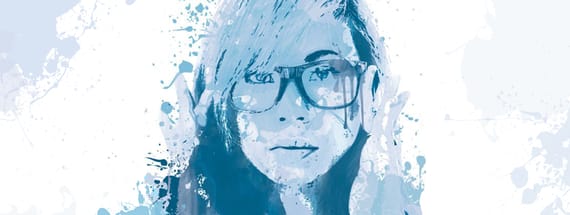
Create a Painted Portrait Effect in Illustrator Using the Bristle Brush
In the past, when I wanted to create a paint-like effect, I always opened Photoshop and relied on the trusty old bitmap graphic. That is, until I discovered the Bristle Brush in Illustrator. The Bristle Brush (which is actually a set of brushes) allows you to paint with layers of vector strokes that apply different shades and transparencies to the stroke. The result is a beautiful and realistic looking paint stroke that is 100% vector.
In this tutorial, I'm going to show you how to use the Bristle Brush to create a painting similar to the one I created below.

Step 1 - Tracing the Original Image
First up, find a good portrait photo. I used this image by Helga Weber.

I copied and pasted the image onto a new art board in Illustrator.
To trace the image using the latest versions of Adobe Illustrator click (Window | Image Trace). Use "Sketched Art" as the preset then bump the Threshold setting up to 220.

Note: For Adobe Illustrator CS5 click (Object | Live Trace | Tracing Options). In the Tracing Options window, choose "One Color Logo" for the Preset, and then bump the Threshold up to 220. Click "Trace".

You'll see that the result is a solid black shape of the girl.

Once you've got your trace, click (Object | Expand) to convert the trace to an editable object, and reduce the color to 20% black. With the shape selected click (Object | Hide | Selection) or (Cmd+3) to hide the shape from view.

Very Important: You need to repeat the above steps 3 times. Pasting the image on a new layer each time. For each image, reduce the threshold setting in the Tracing Options window down to (160, 80, and 50) to reveal more detail with each trace. Once traced and expanded, increase the black color by 20% (so... 40%, 60%, 80%).
Also, note that when you paste the image it lands in the exact place the previous images did. So the resulting traced shapes are directly on top of one another.
Step 2 - Painting the Traces
Now that you have all of your traced images on separate layers, you can click (Object | Show All) or (Cmd+Option+3) to unhide all of the shapes. You should have something like this.


Now let's open the Bristle Brush Library. Click the drop down menu in the upper right corner of the brush panel, and select (Open Brush Library | Bristle Brush).

The brush we'll be using is the Mop. Our color palette will be shades of blue. So for this first background image, I'm going to choose a very light blue. (C:20 M:0 Y:0 K:0)

Now turn off layers 2,3 and 4 to view only the solid background shape again. With the shape selected click (Object | Ungroup). You may have to do this 2-3 times before the shape is completely ungrouped. Now select the shape again, and choose "Draw Inside" from the bottom of the tools panel. Note: this option will not be available if you are clicking on grouped shapes or multiple shapes at once.

Now click "None" for the fill.

Now select the brush tool, and begin painting in the shape. When you release the brush stroke it will be masked by the original shape.

Very Important: You will need to repeat the above steps for each layer. Some layers may have multiple shapes, once ungrouped, that will have to be colored separately. After all layers are completed you should end up with something like this:

Step 3 - Embellishing with Vector Paint
For the final step, I added some vector paint resources that I had on hand. I used elements from the Vector Paint Drips set, and the Loose Splatters set. I've highlighted them in red below so you can get an idea of placement. These are all on a layer below all others.

And below is the final piece. I hope this tutorial has inspired you to create something unique with the Bristle Brush. It truly is a powerful vector tool.
More from Tutorials
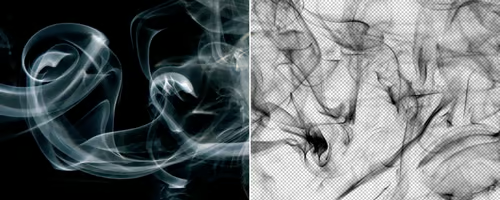
How to Easily Remove Smoke From The Background in Photoshop
Tutorialsby Diego Sanchez
Smoke images can be used in a wide range of applications across various designs, such as adding drama to a photograph, crafting captivating visual effects on posters, or even giving your artwork a mysterious halo. Whichever the case, transparent smoke can serve as a powerful tool in your arsenal. So today, I will show you how easy it is to remove the background from a smoke image, and in the process, prepare the file to change the smoke color at any time you want, allowing you to seamlessly integrate it into your projects.
Read more
Easily Make a Glass Texture Effect in Photoshop
Tutorialsby Diego Sanchez
The glass effect has been used by many designers and photographers to add depth and dimension to their compositions with a touch of modern elegance. There are, of course, many different ways to apply a glass effect in Photoshop, but today I will show you how easy it is to make your own glass texture and apply realistic distortion to any of your images using nothing but the default Photoshop tools.
Read more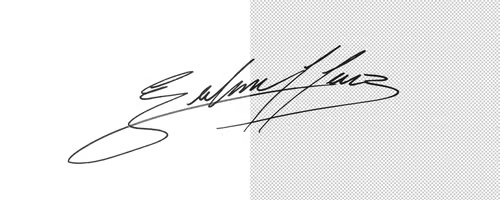
How to Easily Make Your Vector Digital Signature
Tutorialsby Diego Sanchez
In today's digital life, whether you are a freelancer, a business owner, or simply someone who frequently engages in digital transactions, having a well-crafted digital signature is almost indispensable to add a touch of authenticity and credibility to your documents. So today, I will show you how easily you can make your own vector digital signature in Illustrator for you to sign your digital documents or incorporate it into any design work.
Read more
Easily Make an Editable Grunge Text Effect in Photoshop
Tutorialsby Diego Sanchez
There are different ways to make a grunge text effect in Photoshop while keeping your text fully editable, and the most known one is to use a texture as a layer mask to hide part of the text. But Today I will show you a differnt approach on how you can make this kind of effect, while keeping you text fully editable and at the same time give you a bit more control over that effect by using a texture in a new layer (instead of a layer mask) that you can later move, scale, replace or combine with other textures without replacing any kind of layer mask.
Read more