
Photoshop Quick Tip: Turn Any Photo into a Screen Printed Graphic
To start off, grab a good photo that you would like to transform to a screen print image. I used this awesome tiger photo by Tambako the Jaguar.
Step 1
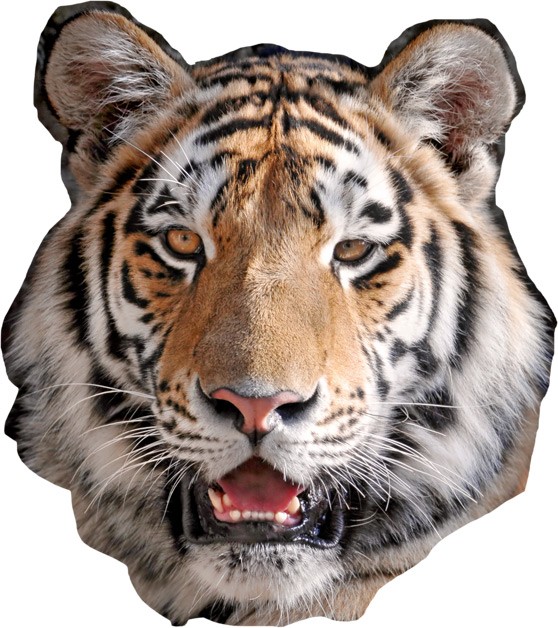
Open the photo in Photoshop, and create a very rough selection around the tiger's face using the Lasso Tool (L). Press (Cmd+C) to copy the selection.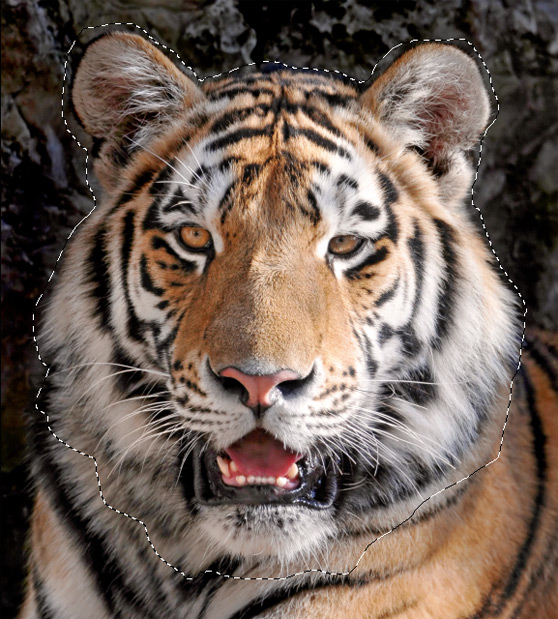 Create a new document (Cmd+N). The sizing will already be set based on the copy. Press okay, and then (Cmd+V) to paste the tiger onto the new document.
Step 2
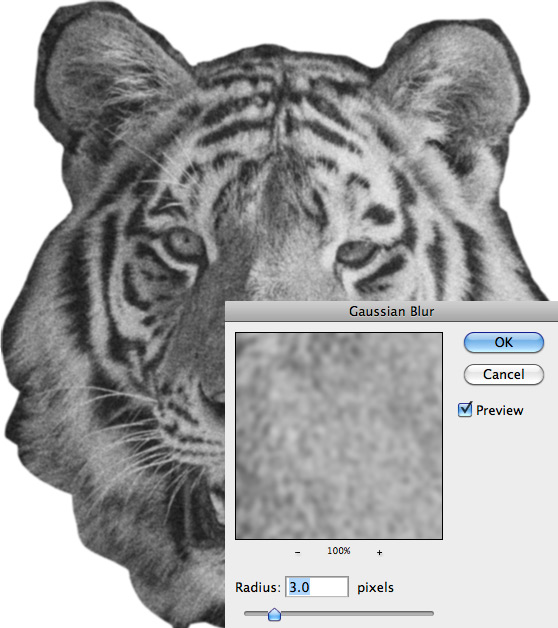
Now let's roughen up the photo to make it look like something from an old photo copier. Desaturate the image by pressing (Cmd+Shift+U). Then select (Filter | Noise | Add Noise). I used a setting of 55% for the amount.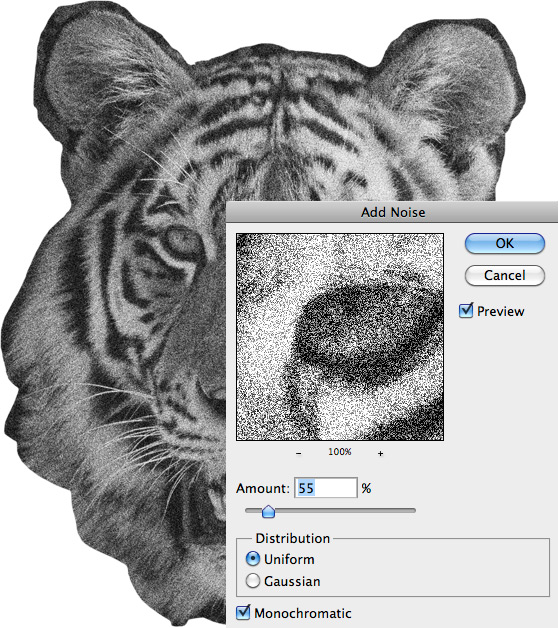 Next, add a Gaussian Blur (Filter | Blur | Gaussian Blur) with a setting around 3.
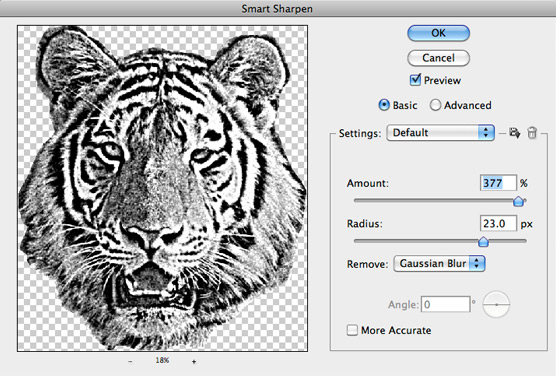
 Now we're going to apply a Smart Sharpen (Filter | Sharpen | Smart Sharpen) to add that final bit of roughness to the image.
Step 3
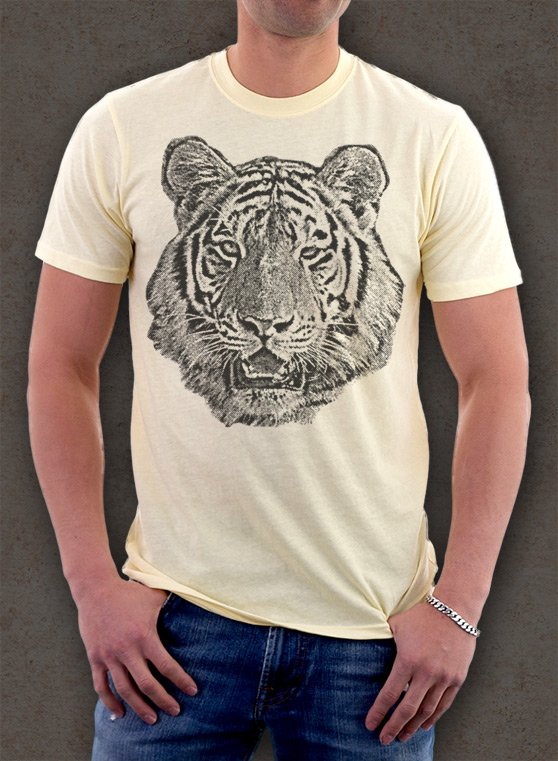
For the final step we need to convert the image to Grayscale (Image | Mode | Grayscale). You can select to flatten the image when prompted. Then we need to select (Image | Mode | Bitmap). I selected 72dpi for my output, and Halftone Screen for the method. For the Halftone Screen I used the following settings.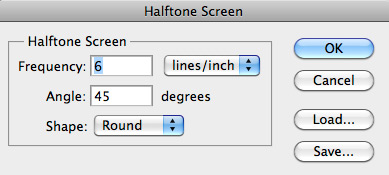
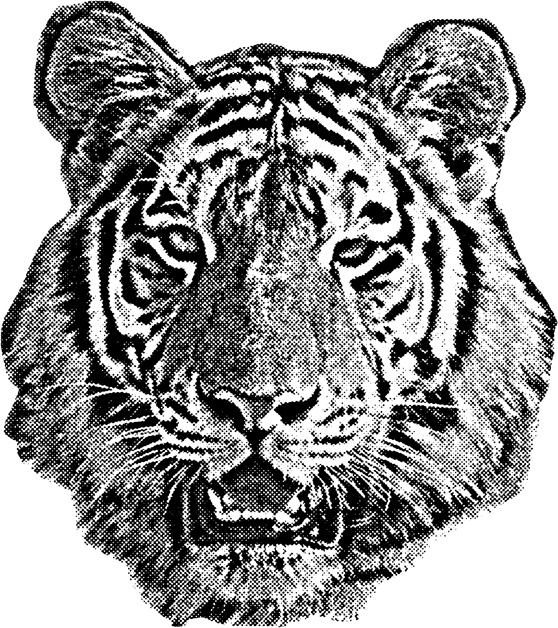
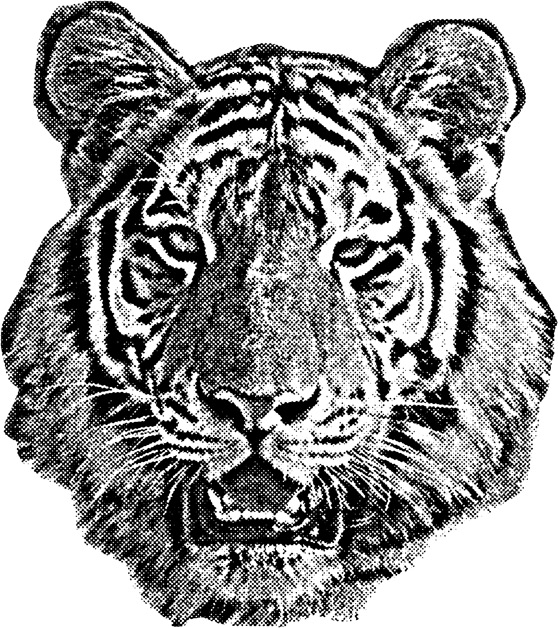 From here you can switch back to Grayscale mode and then back to RGB. I placed the graphic in this mockup file to display the effect.
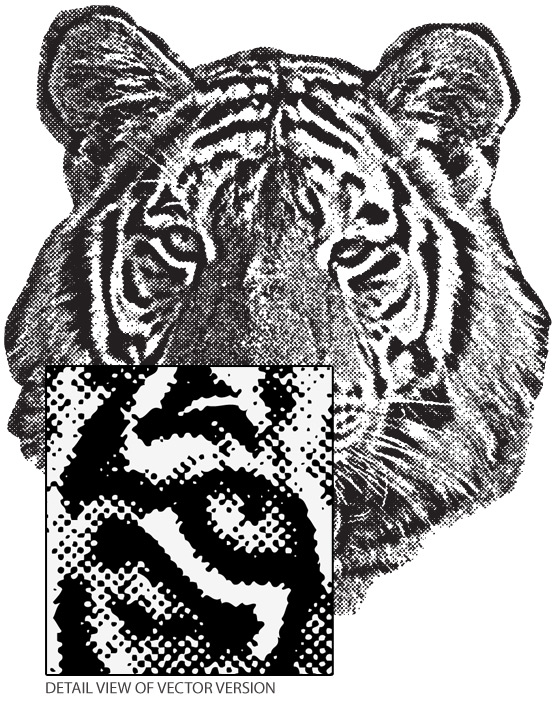
 For use in your vector artwork you could also take the graphic over to Illustrator and run an Auto Trace. Below is an auto traced vector. I used the One Color Logo preset.
More from Tutorials
How to Easily Remove Smoke From The Background in Photoshop
Tutorialsby Diego Sanchez
Smoke images can be used in a wide range of applications across various designs, such as adding drama to a photograph, crafting captivating visual effects on posters, or even giving your artwork a mysterious halo. Whichever the case, transparent smoke can serve as a powerful tool in your arsenal. So today, I will show you how easy it is to remove the background from a smoke image, and in the process, prepare the file to change the smoke color at any time you want, allowing you to seamlessly integrate it into your projects.
Read more
Easily Make a Glass Texture Effect in Photoshop
Tutorialsby Diego Sanchez
The glass effect has been used by many designers and photographers to add depth and dimension to their compositions with a touch of modern elegance. There are, of course, many different ways to apply a glass effect in Photoshop, but today I will show you how easy it is to make your own glass texture and apply realistic distortion to any of your images using nothing but the default Photoshop tools.
Read more
How to Easily Make Your Vector Digital Signature
Tutorialsby Diego Sanchez
In today's digital life, whether you are a freelancer, a business owner, or simply someone who frequently engages in digital transactions, having a well-crafted digital signature is almost indispensable to add a touch of authenticity and credibility to your documents. So today, I will show you how easily you can make your own vector digital signature in Illustrator for you to sign your digital documents or incorporate it into any design work.
Read more
Easily Make an Editable Grunge Text Effect in Photoshop
Tutorialsby Diego Sanchez
There are different ways to make a grunge text effect in Photoshop while keeping your text fully editable, and the most known one is to use a texture as a layer mask to hide part of the text. But Today I will show you a differnt approach on how you can make this kind of effect, while keeping you text fully editable and at the same time give you a bit more control over that effect by using a texture in a new layer (instead of a layer mask) that you can later move, scale, replace or combine with other textures without replacing any kind of layer mask.
Read more